

Huawei Cloud (Recommended, SDK v3.1.86)
Huawei Cloud (Recommended, SDK v3.1.86)
Add Block Storage
From the top navigation bar, select "Configuration" → "Storage Configuration" → "Block Storage" to enter the block storage page. Click the "Add" button in the upper right corner to add a new block storage configuration.
Auth Info
Select "Huawei Cloud (Recommended, SDK v3.1.86)" from the block storage platform dropdown list. Fill in the following authentication information according to your actual environment:
If you're unsure how to obtain the relevant information, you can click "Click to View" below for detailed instructions.
👉 Click to View

- Auth Info Description
| Field | Example | Description |
|---|---|---|
| Block Storage Platform | Huawei Cloud (Recommended, SDK v3.1.86) | Select the block storage platform from the dropdown list; choose Huawei Cloud here. SDK v3.1.86 is recommended. |
| Access Key ID | HPUAAG0B2••••••••••••••• | The credential used to access Huawei Cloud APIs. Log in to the Huawei Cloud management console, click the top-right [Username] > [My Credentials] > [Access Keys] to obtain the Access Key ID. |
| Access Key Secret | •••••••••••••••••••••••••••••••• | The credential used to access Huawei Cloud APIs, used together with the Access Key ID. Log in to the Huawei Cloud management console, click the top-right [Username] > [My Credentials] > [Access Keys] to obtain the Access Key Secret. |
| Region | cn-east-5 | Enter the project name corresponding to the region where the target resources reside. Log in to the Huawei Cloud management console, click the top-right [Username] > [My Credentials] > [API Credentials], and check it under [Projects]. Note: Enter the project name here (for example, cn-north-1), not the project ID. |
| Subproject ID | ••••••••••••••••• | Enter the subproject ID. Log in to the Huawei Cloud management console, click the top-right [Username] > [My Credentials] > [API Credentials], and check it under [Project ID]. This field is required only when the project contains subprojects and is optional. |
| Name | test | A custom configuration name. If not specified, the system will automatically generate a default name. |
After filling in the authentication information, click "Next" to proceed to "Resource Configuration".
Resource Configuration
Allocate computing and storage resources for the Cloud Sync Gateway to ensure stable and efficient operation in the target environment.

- Resource Configuration Description
| Field | Example | Description |
|---|---|---|
| Region | CN East-Qingdao | The target region for which authentication has been configured; this cannot be changed. |
| Availability Zone | AZ1 | Select the availability zone within the corresponding region from the dropdown list. |
| Flavor | 2 vCPU | 4 GB | Select the vCPU and memory specification from the dropdown list; the example specifications below will refresh automatically after selection. The actual available specifications apply. The Cloud Sync Gateway is mainly used for data synchronization, so it is recommended to choose an instance with at least 2 vCPU and 4 GB of memory and ensure the base bandwidth is higher than 1 Gbps for efficient and stable data synchronization. |
| Image | Ubuntu 24.04 | Select a Linux OS image from the dropdown list. A Linux OS image must be selected when creating the Cloud Sync Gateway. If no suitable image is available in the list, manually upload an Ubuntu 24.04 image. To avoid selecting the wrong image due to non-standard image names, verify the image details carefully and make sure the required OS image is selected. |
| System Disk Type | High IO | Select the appropriate system disk type based on the actual storage performance requirements; the types supported by the target cloud platform apply. |
| System Disk Size | 40 GB | Customizable based on the instance requirements and the Cloud Sync Gateway workload. The default size is 40 GB. |
After resource configuration, click "Next" to proceed to "Network Configuration".
Network Configuration
Allocate network resources for the Cloud Sync Gateway to ensure stable and efficient operation in the target environment.

- Network Configuration Description
| Field | Example | Description |
|---|---|---|
| VPC | project-vpc (xxx.xxx.xxx.xxx/xx) | Select the private network for the Cloud Sync Gateway from the dropdown list; the actual value applies. |
| Subnet | project-subnet-public1-cn-north-1a (xxx.xxx.xxx.xxx/xx) | Select the subnet in the corresponding availability zone from the dropdown list; the actual value applies. |
| Specify Private IP | Auto-assign IP address | By default, the private IP address of the Cloud Sync Gateway is assigned automatically. To specify an IP address, select manual assignment from the dropdown list and enter the required IP address. Before specifying an IP address, make sure it is not already in use. |
- Network Advanced Settings
| Field | Example | Description |
|---|---|---|
| Cloud Sync Gateway Control Network | Internal | Set the network used to deliver control commands between the console and the Cloud Sync Gateway. For VPN or dedicated line, select Internal. |
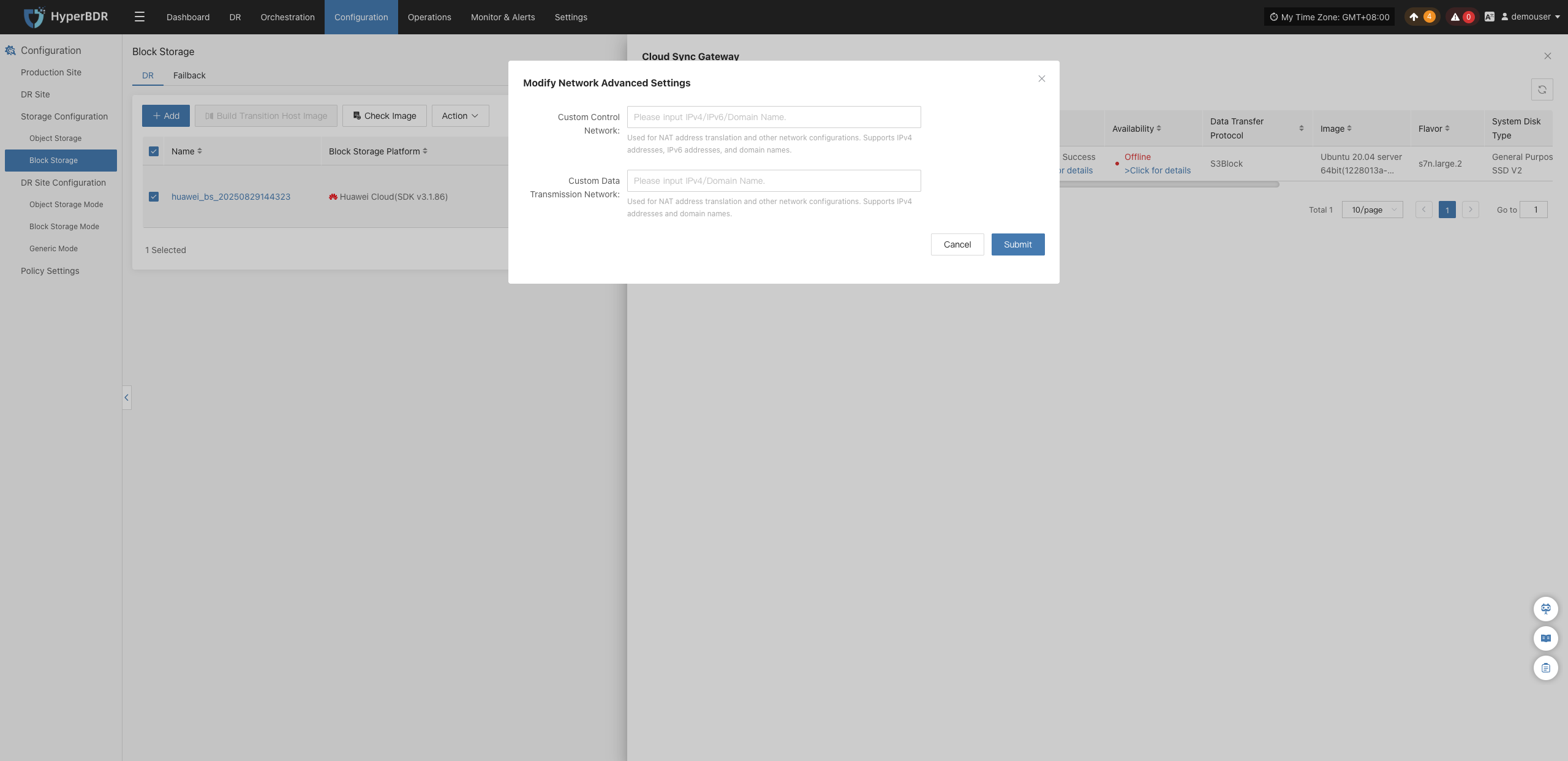
| Custom Control Network | example.com | Usually not required. Configure only when a connection to a specified address is required, for example in NAT address translation scenarios. Supports IPv4, IPv6, and domain names. |
| Data Transmission Network | Internal | Set the data transfer network between the source and the Cloud Sync Gateway. For VPN or dedicated line, select Internal. |
| Custom Data Transmission Network | example.com | Usually not required. Configure only when a connection to a specified address is required, for example in NAT address translation scenarios. Supports IPv4, IPv6, and domain names. |
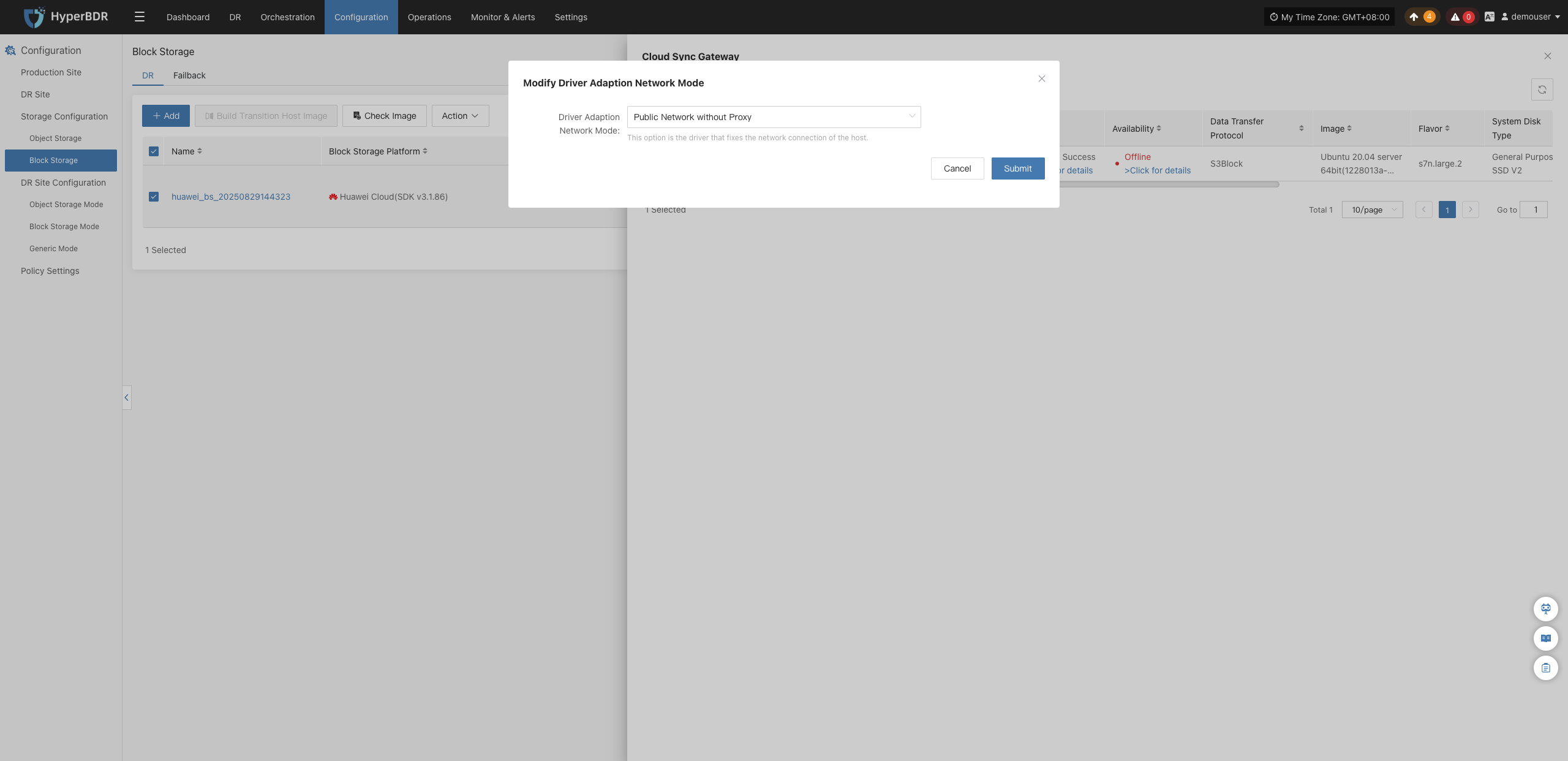
| Driver Adaption Network Mode | Public network without proxy | Set the network connection mode for the driver adaption host. Available options: Public network without proxy, Internal network without proxy, Public network via Cloud Sync Gateway proxy, Internal network via Cloud Sync Gateway proxy. |
| Bandwidth Size | 100 Mbps | Configure based on the actual scenario; supports 1–200 Mbps. This parameter affects the data transfer rate from the source to the target. |
- Data Transfer Advanced Setting
| Field | Example | Description |
|---|---|---|
| Data Transfer Protocol | S3Block | Set the data transfer protocol between the source and the Cloud Sync Gateway. Available options: S3Block, iSCSI (to be retired, not recommended). |
- Advanced Volume Backup Settings
| Field | Example | Description |
|---|---|---|
| Max Backup Volume | 23 | Set the maximum number of backup volumes; supported values are 23 or 59. When 59 is selected, the platform supports up to 23 hosts. |
After network configuration, click "Next" to proceed to "Target Start Settings".
Target Start Settings
Configure the key parameters required for starting the target during recovery or drill, ensuring resources can take over and run smoothly.

- Target Start Settings Description
| Field | Example | Description |
|---|---|---|
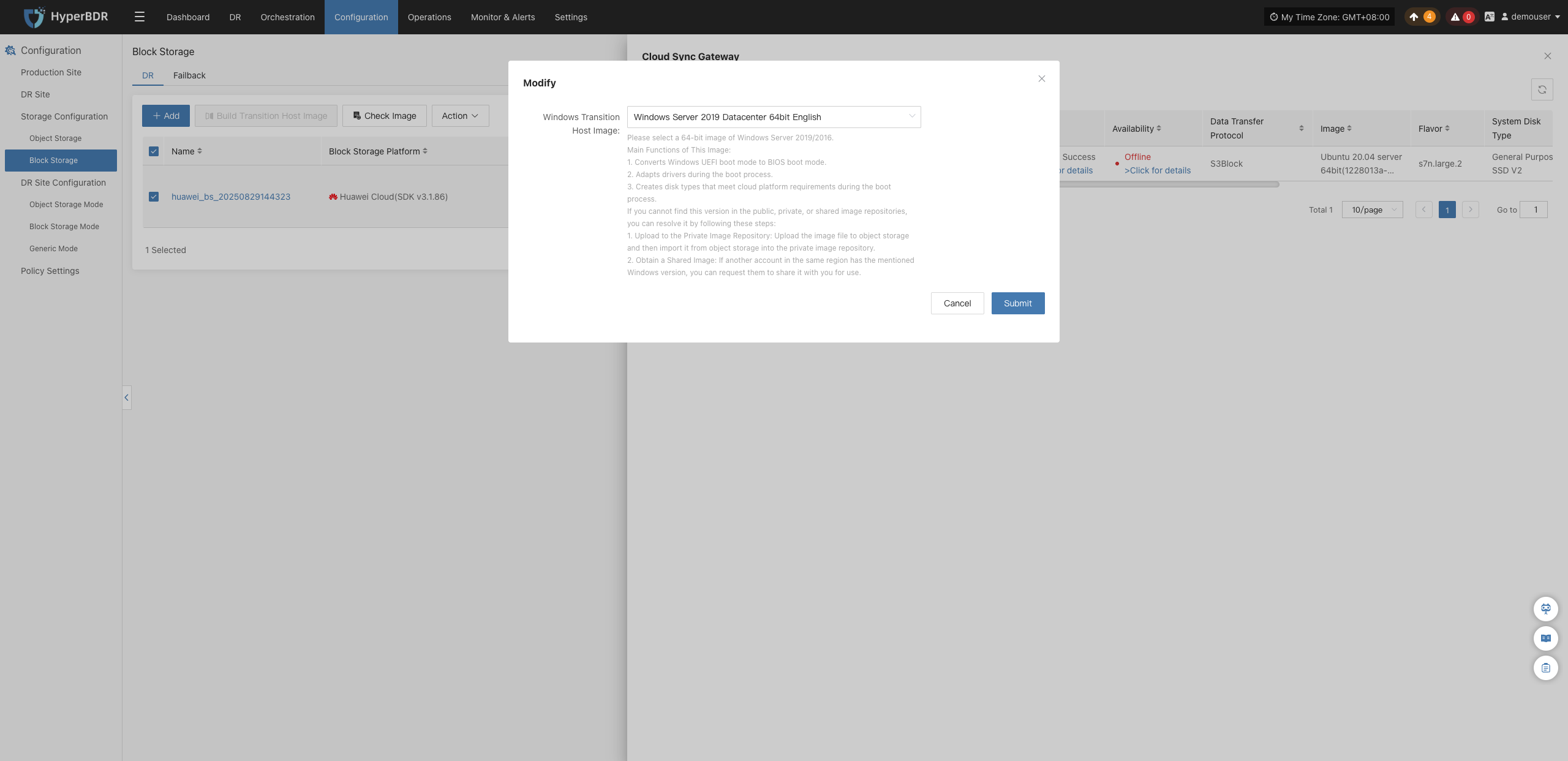
| Windows Transition Host Image | Windows Server-2019-English-Full-Base-2025.05.15 | Used for system boot adaptation and boot repair to ensure the instance starts properly on the target platform. Select a 64-bit Windows Server 2019 image compatible with the example version. |
| Image Access Method | Default | Set the credential injection method for the instance. Two modes are supported: Default and Custom. If the target cloud platform does not support Cloud-init and cannot automatically inject the username and password, you must select Custom and manually set a valid account and password. |
After completing the target start settings, click "Complete". The system will automatically create the Cloud Sync Gateway and the transition host image.
View Details
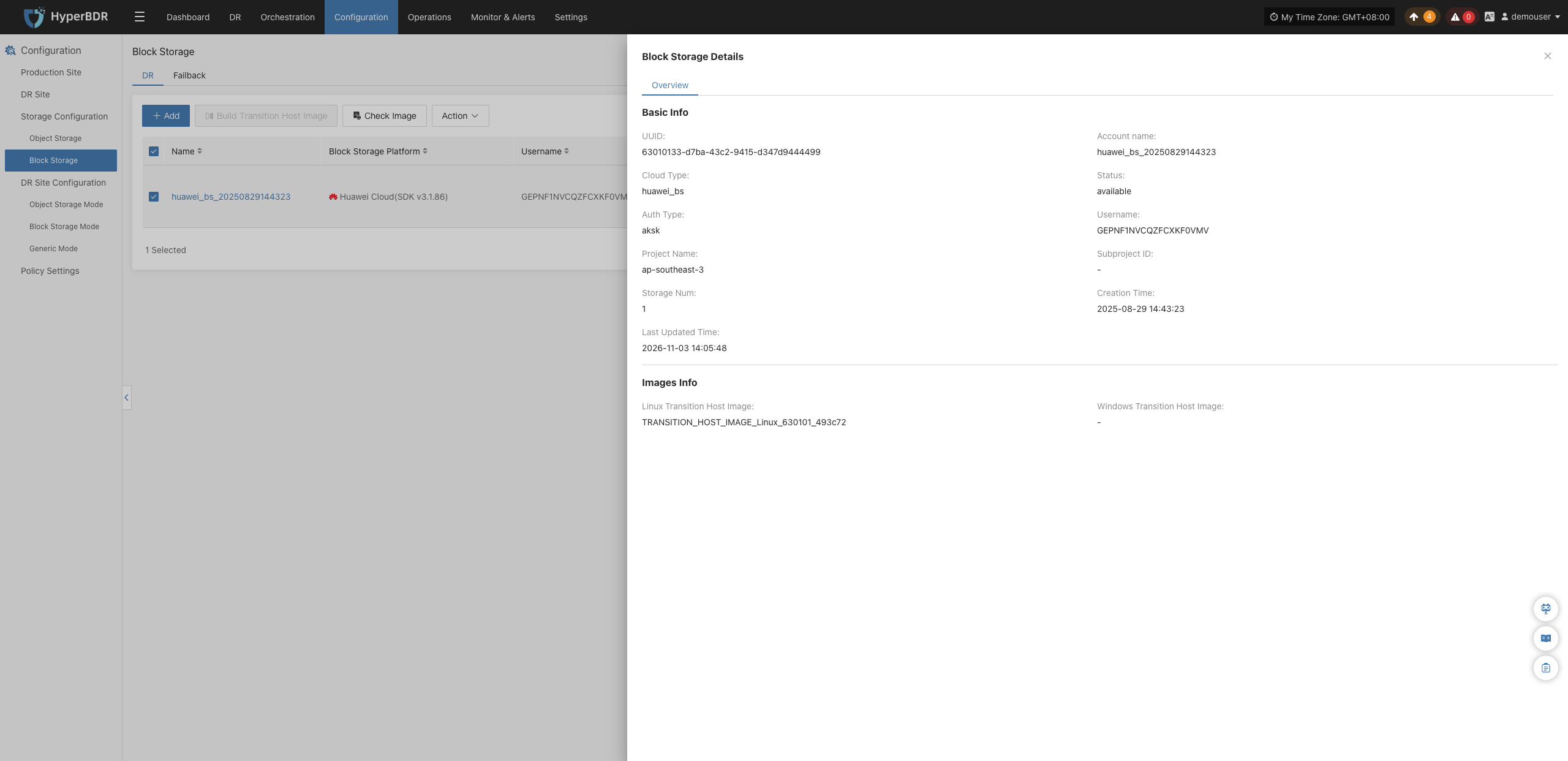
Click the block storage name to view its detailed configuration.
Gateway Availability
In the "Gateway Availability" column, click "Click to View List" to view the Cloud Sync Gateway list.

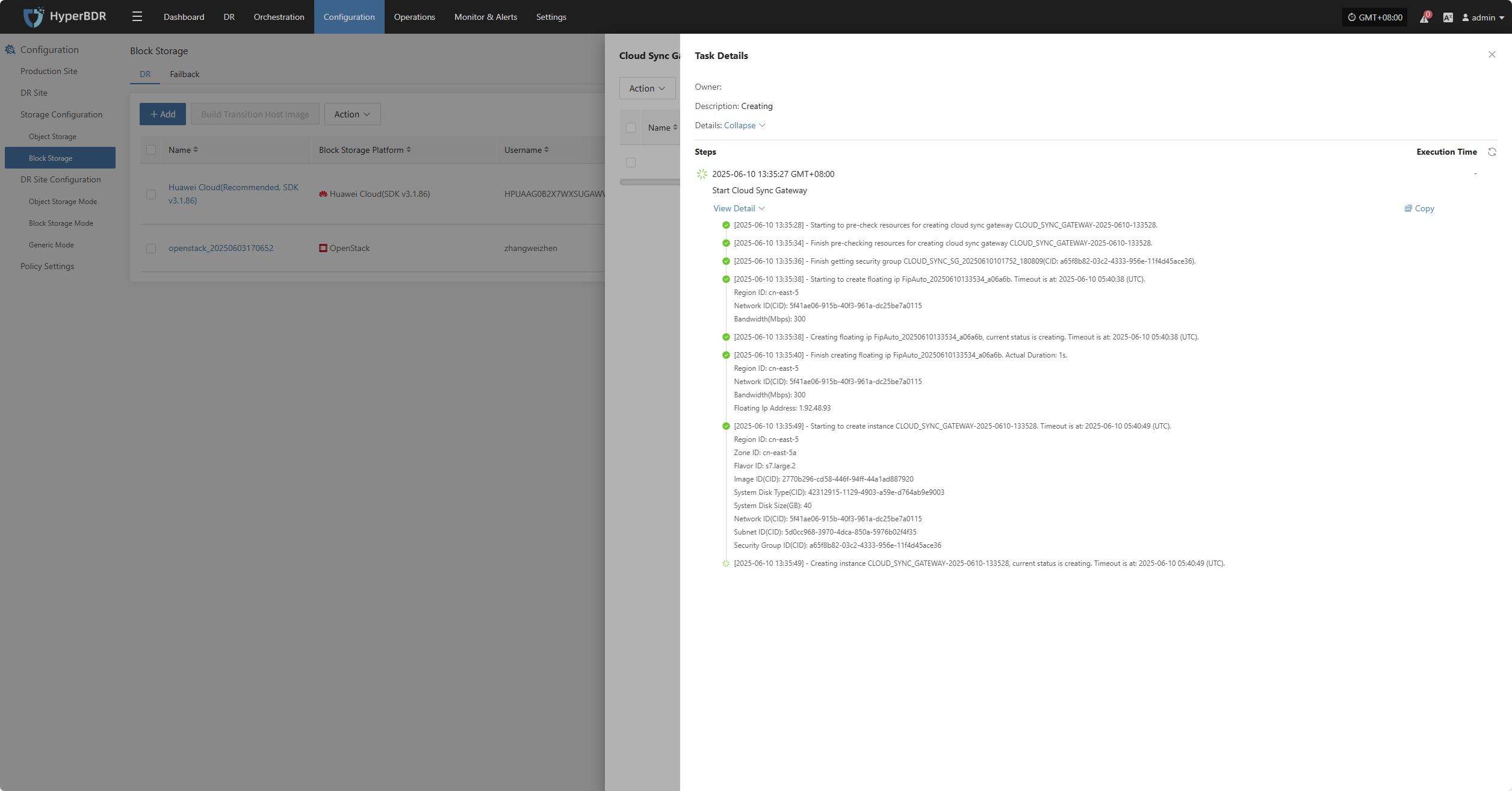
In the "Status" column of the corresponding host, click "Click to View Details" to view detailed logs generated during task creation, helping you quickly understand the execution status and troubleshoot issues.
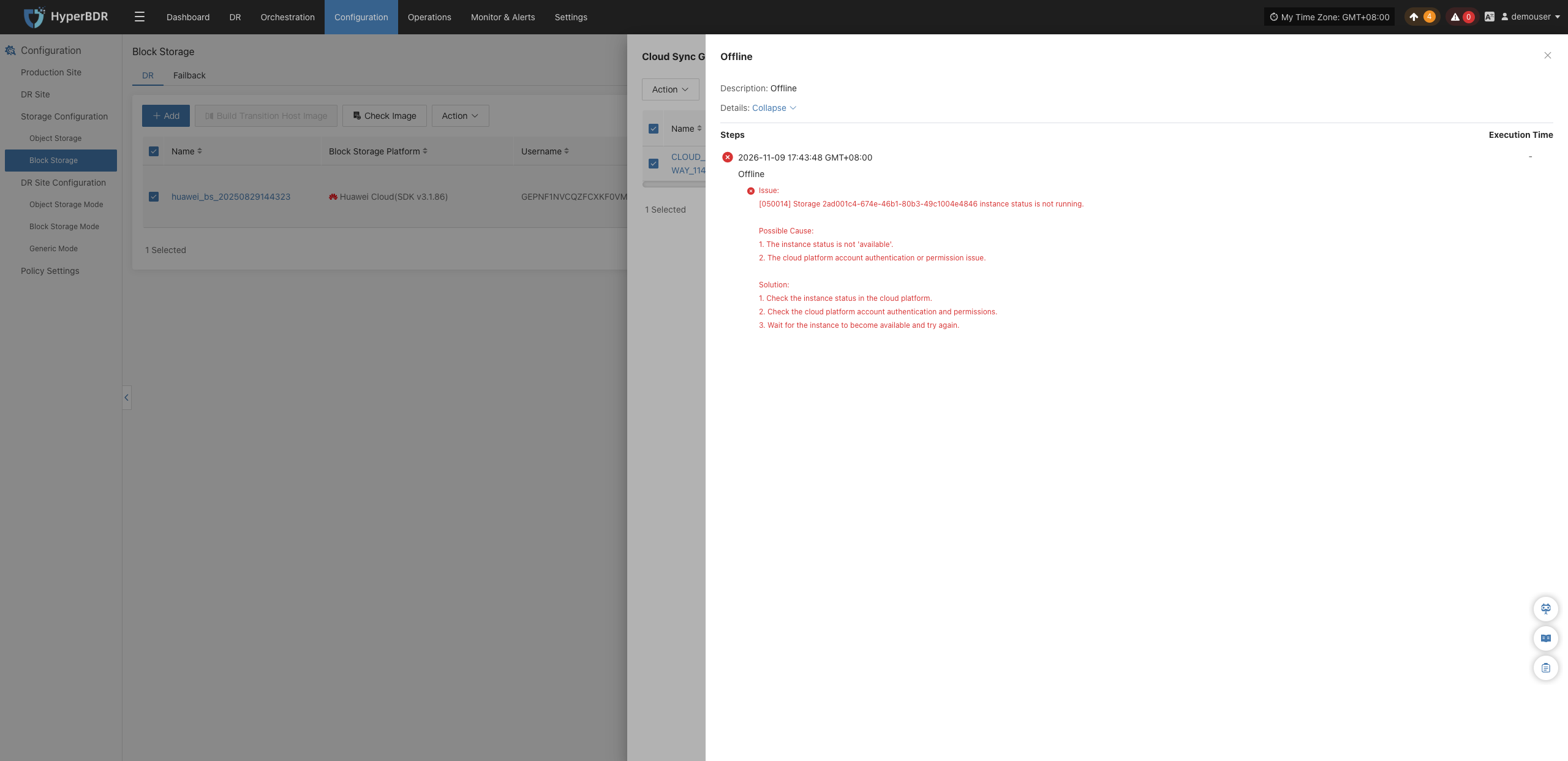
In the "Health Status" column of the corresponding host, click "Click to View Details" to view the current gateway error logs, helping you quickly understand the execution status and troubleshoot issues.
When the Cloud Sync Gateway is running normally, the "Click to View Details" button is not displayed.
More Operations
Select a single Cloud Sync Gateway and click the "More Operations" button to expand the operations menu and adjust its configuration:
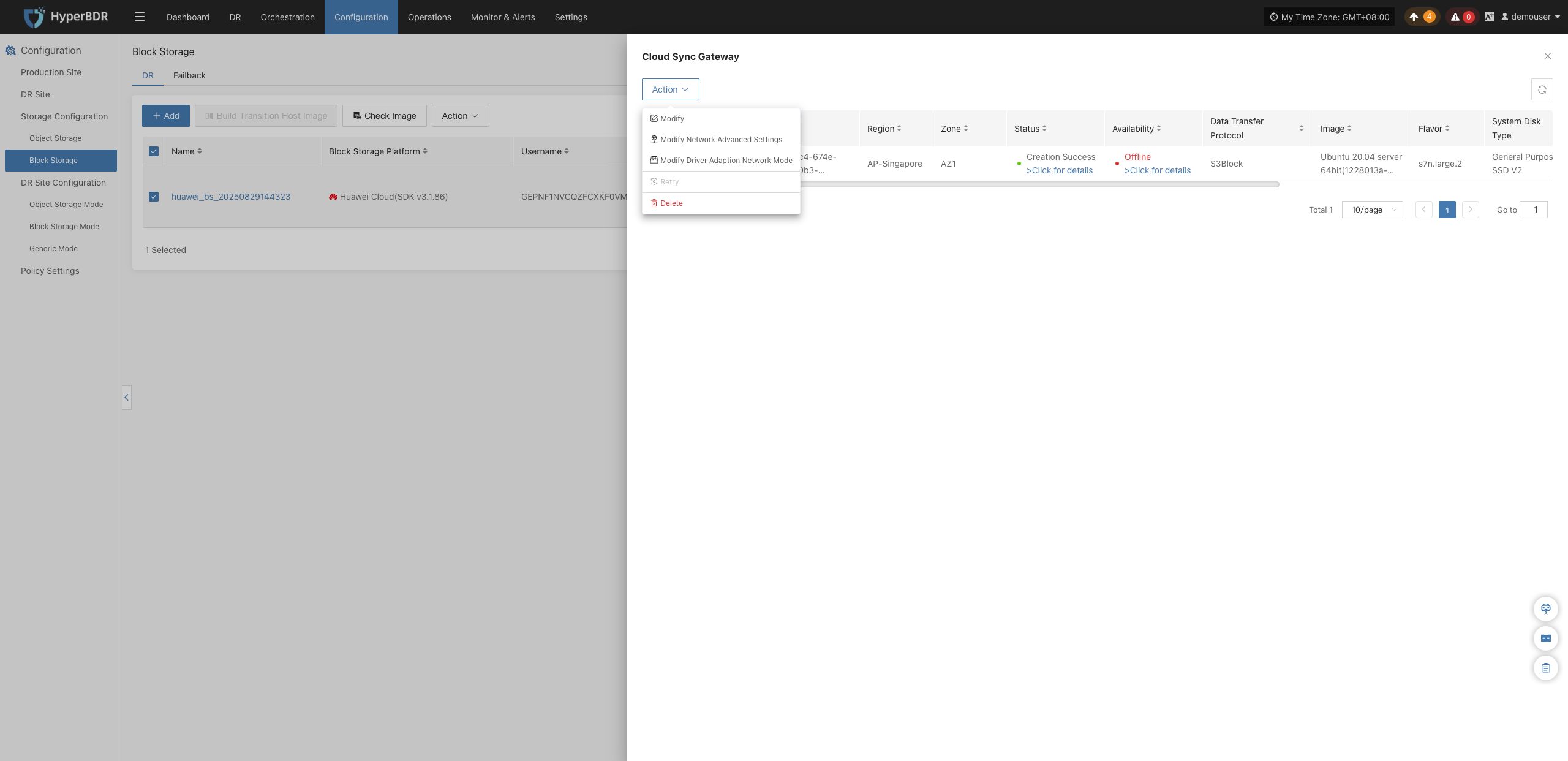
Modify
Click "Modify" to reselect and adjust the Windows Transition Host Image associated with this Cloud Sync Gateway.
Modify Network Advanced Settings
Click "Modify Network Advanced Settings" to change the IPv4/IPv6 address or domain name configuration of the Custom Control Network and Custom Data Transmission Network.
Modify Driver Adaption Network Mode
Click "Modify Driver Adaption Network Mode" to switch the network connection mode of the driver adaption host.
Retry
When the Cloud Sync Gateway fails to be built, click "Retry" to rebuild the Cloud Sync Gateway.
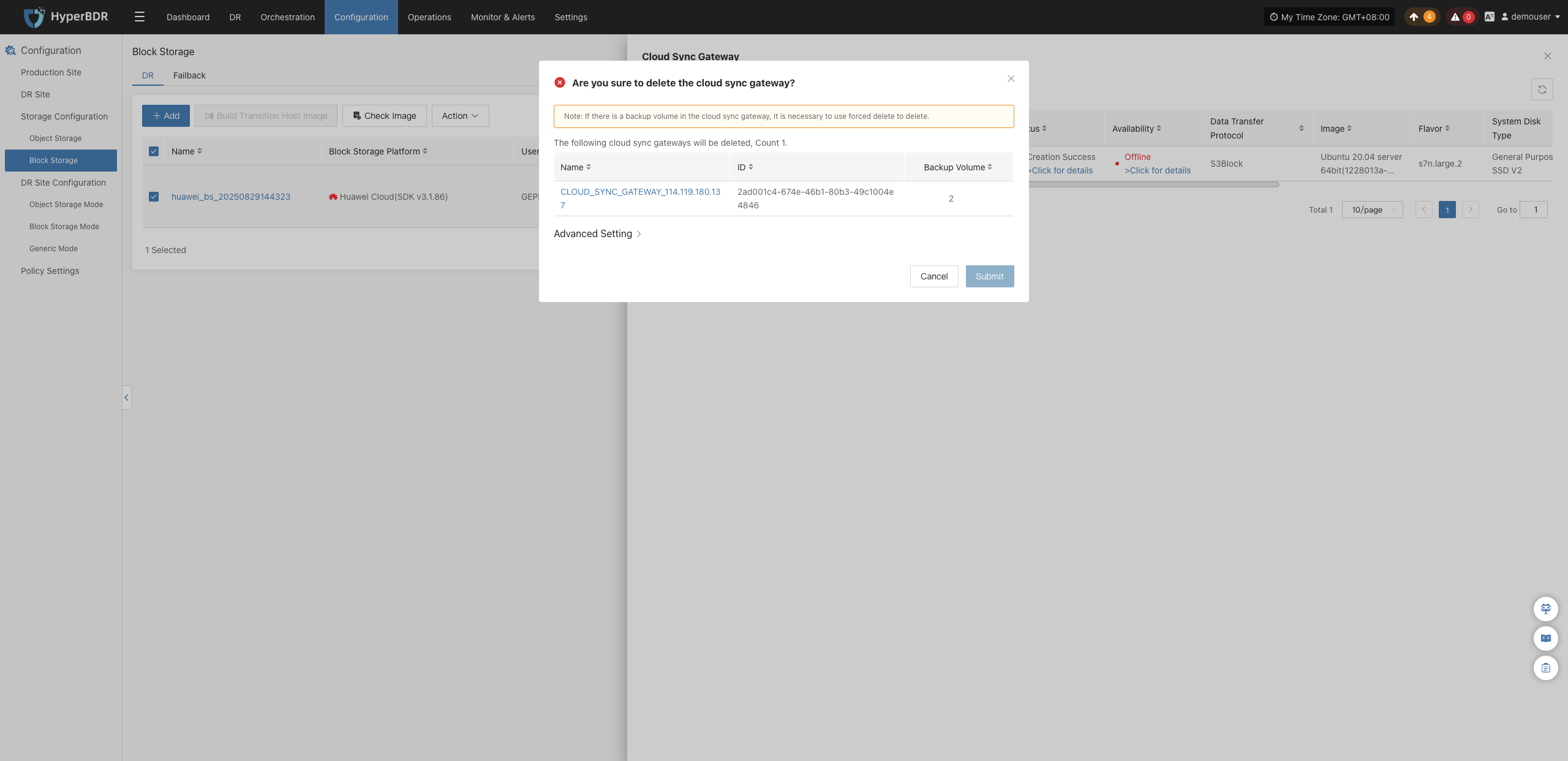
Delete
Click "Delete" and the system will display a secondary confirmation window. If backup volumes exist in the Cloud Sync Gateway, select the confirmation checkbox for forced deletion.
Transition Host Image
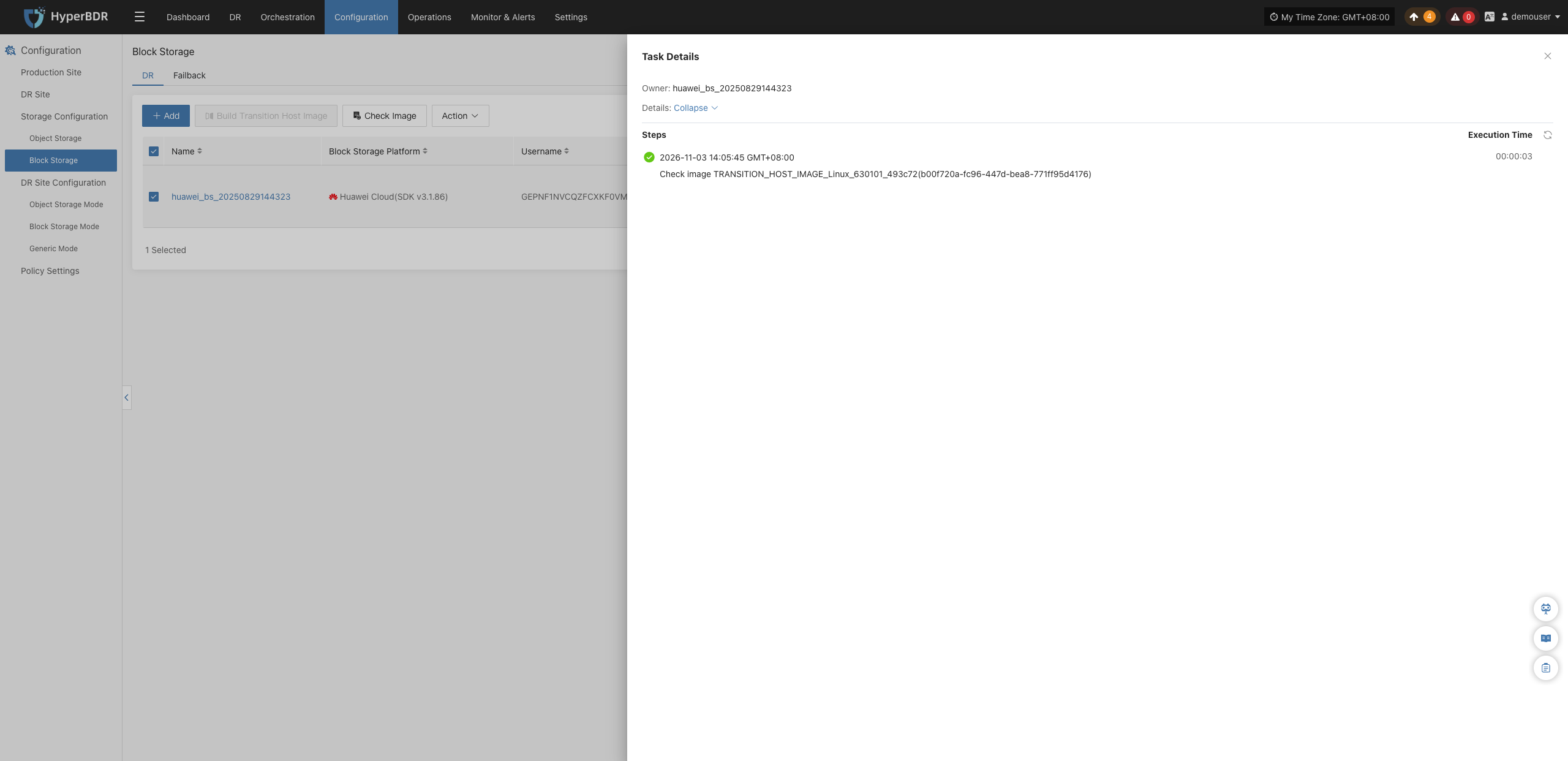
In the "Transition Host Image" column, click "View" to view detailed logs generated during the transition host image build process, helping you quickly understand the execution status and troubleshoot issues.
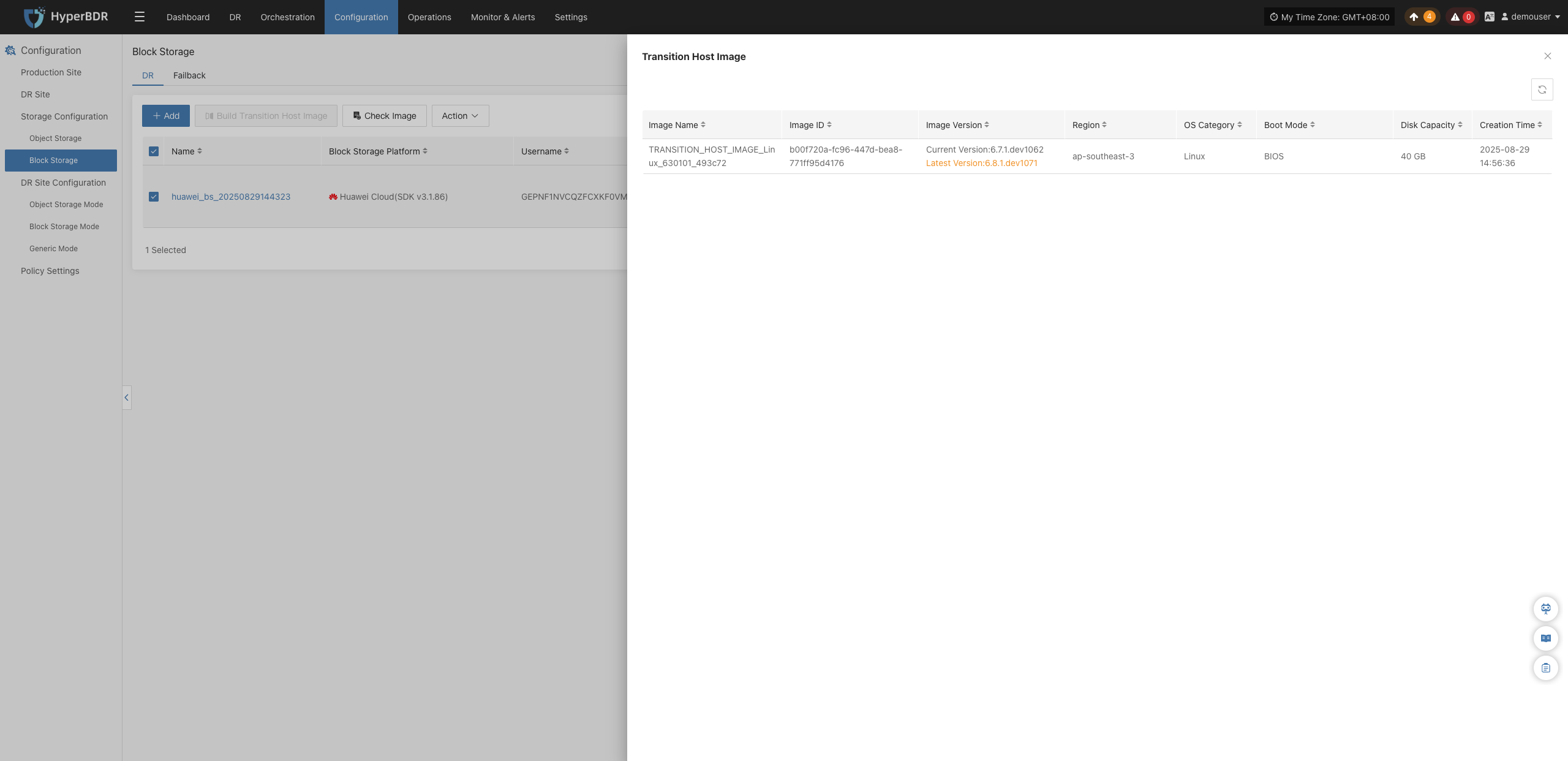
In the "Transition Host Image" column, click "Click to View List" to view the detailed transition host image list.
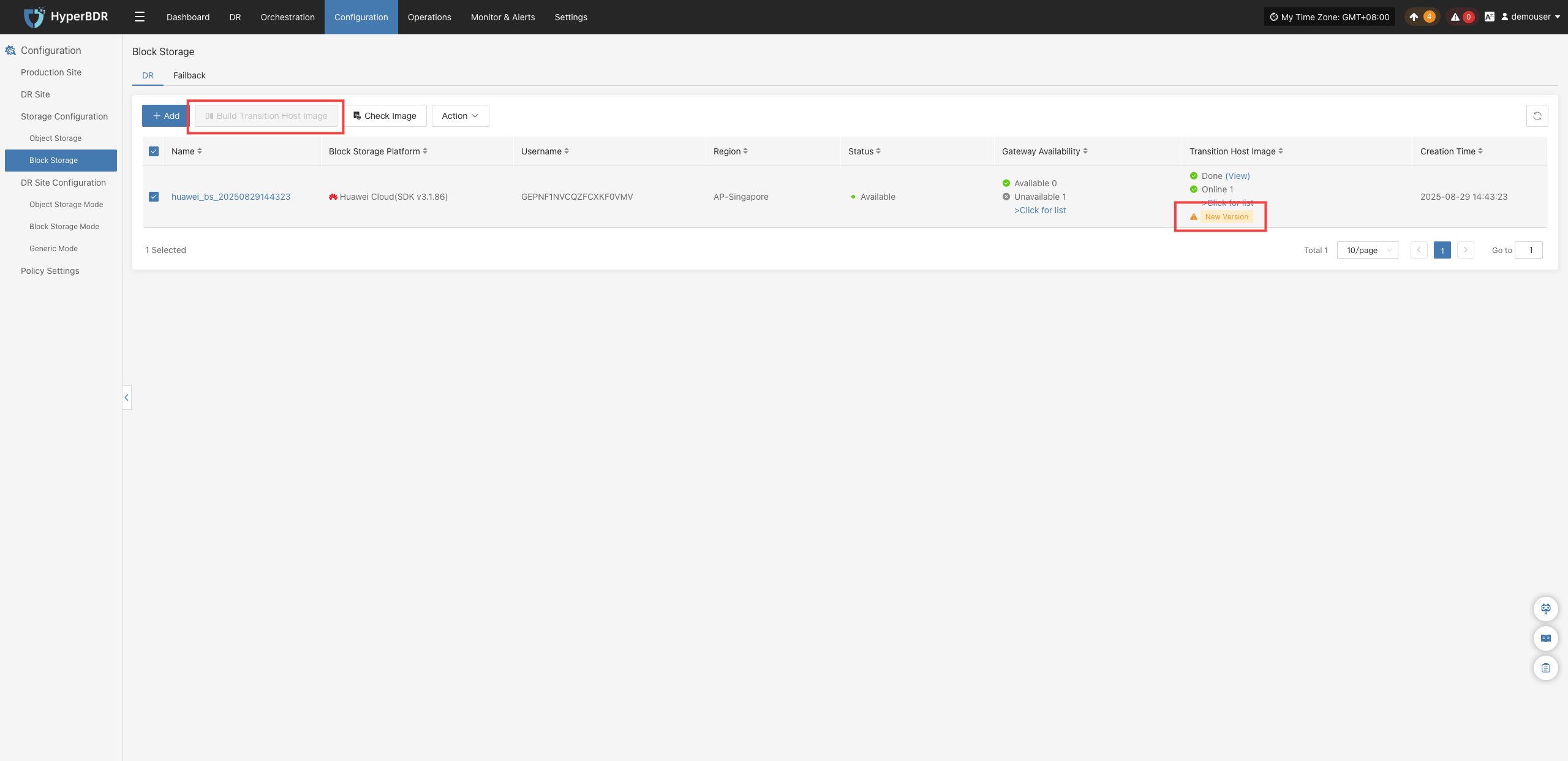
Build Transition Host Image
When the Transition Host Image column indicates "New Version Available", select the corresponding platform entry and click "Build Transition Host Image" at the top.
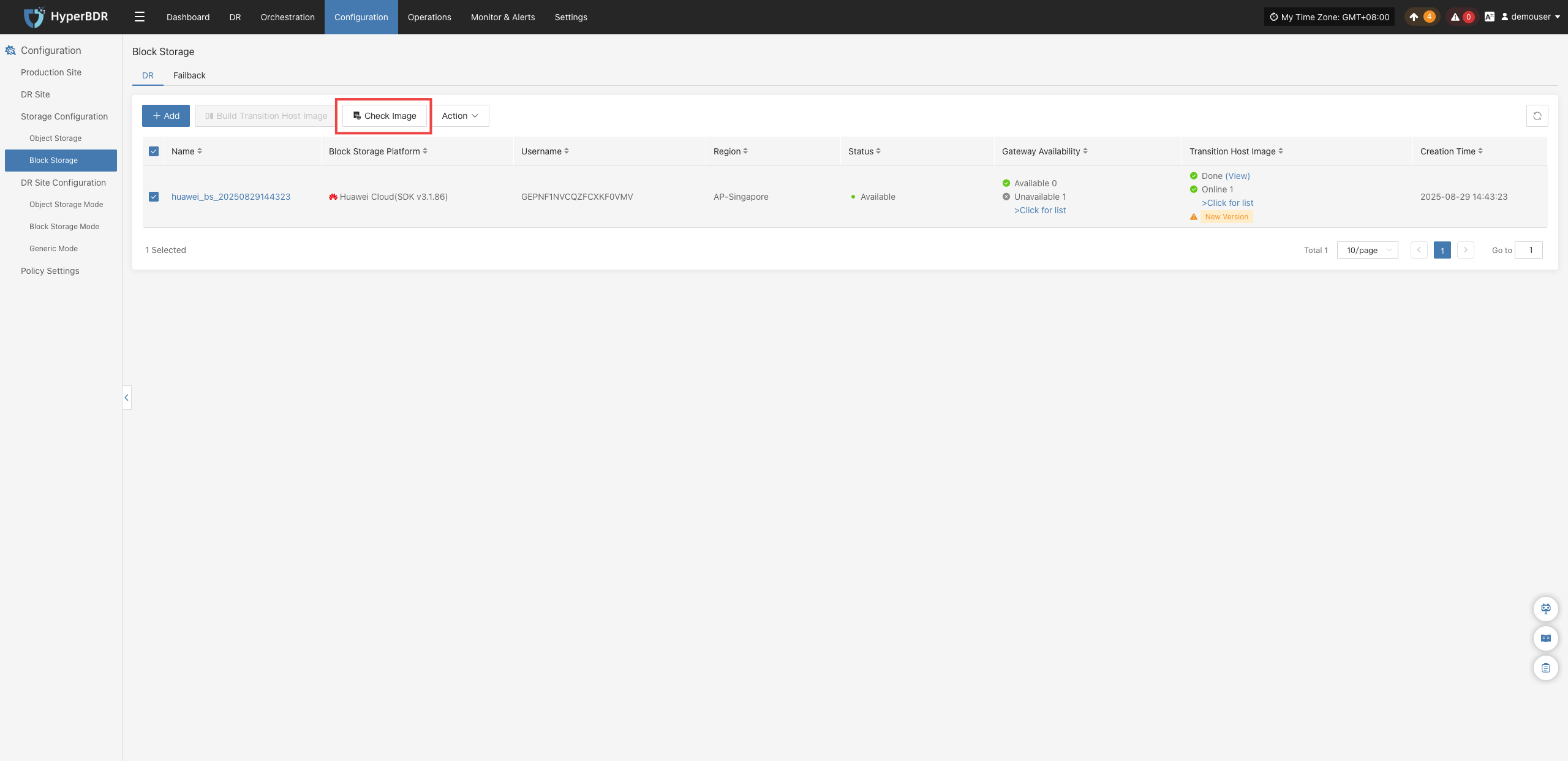
Check Image
Select the corresponding platform entry and click "Check Image" at the top to verify the image status.
Action
Select the target platform and click the "Action" dropdown button to expand the management operations menu:

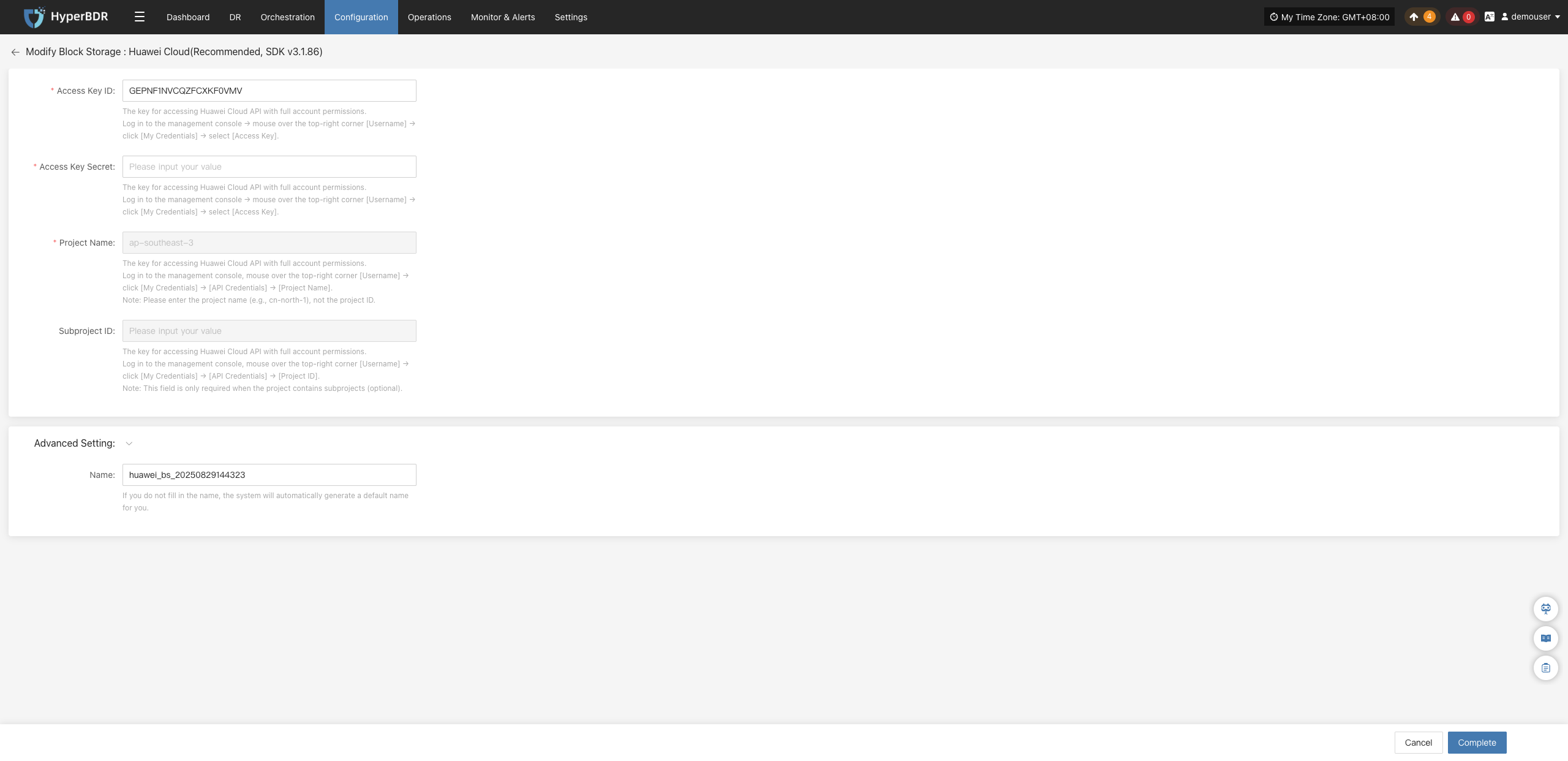
Modify
Click "Modify" to edit the authentication information.
Extend
Click "Extend" to edit the resource configuration, network configuration, and target start settings.

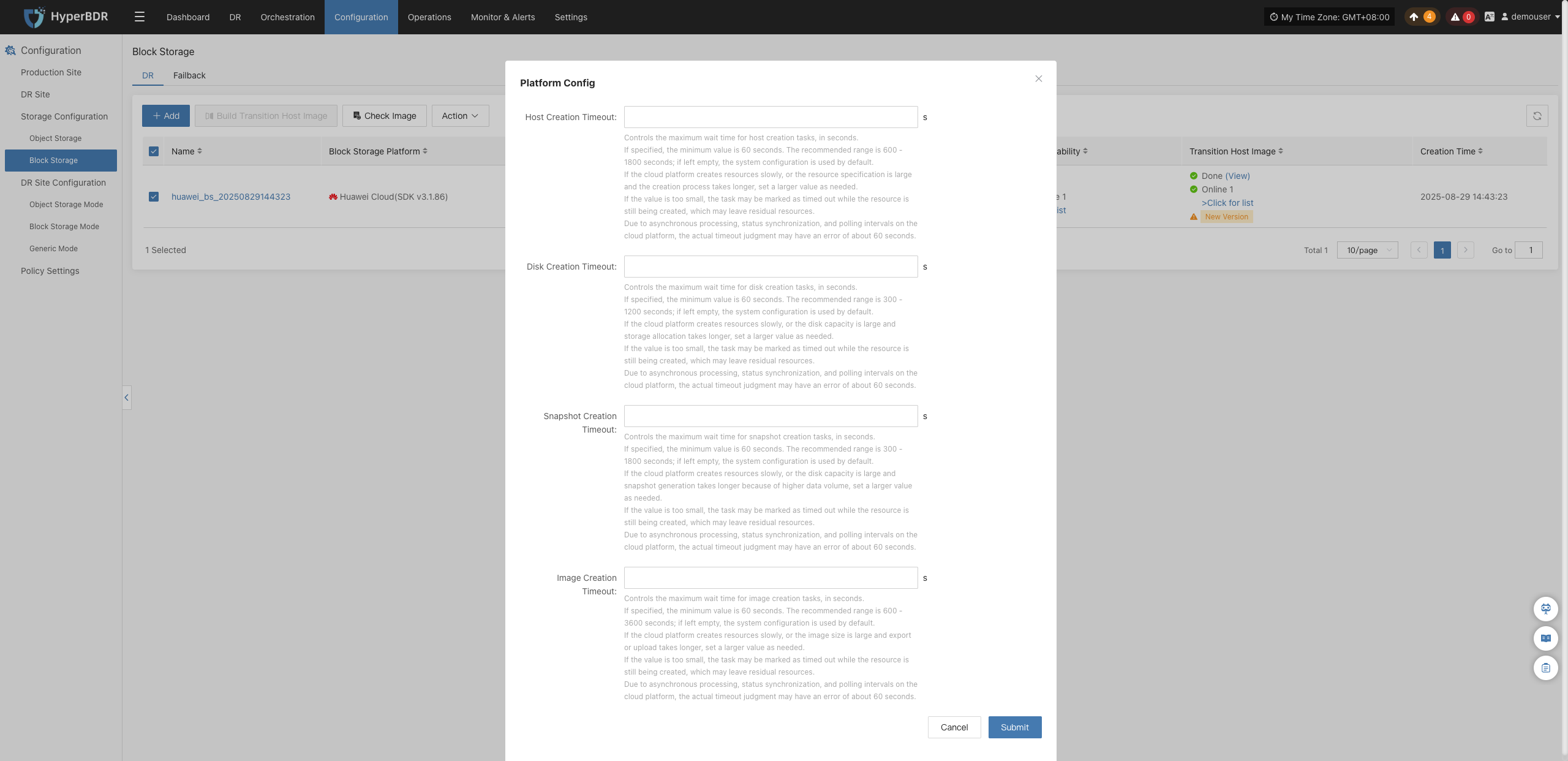
Platform Configuration
Click "Platform Configuration" to customize the timeout periods for host creation, disk creation, snapshot creation, and image creation.
Reports
Click "Export Report" to export the report information for the corresponding Cloud Sync Gateway.

Select the report type, collection range, time zone, and time range, then click "Next". Select the hosts for which you want to export the report and click "Confirm".

Delete
Click "Delete". The system will display a deletion confirmation prompt; review the deletion risk warning and click "Confirm" to complete the deletion.
Note: When a Cloud Sync Gateway exists, the storage platform cannot be deleted. Delete the Cloud Sync Gateway first, then delete the storage platform.
